BuildingGen Packager Panel
The BuildingGen Packager panel is a versatile tool for creating packages featuring custom building styles with varied aesthetics using external content. It also can be used for customizing existing styles.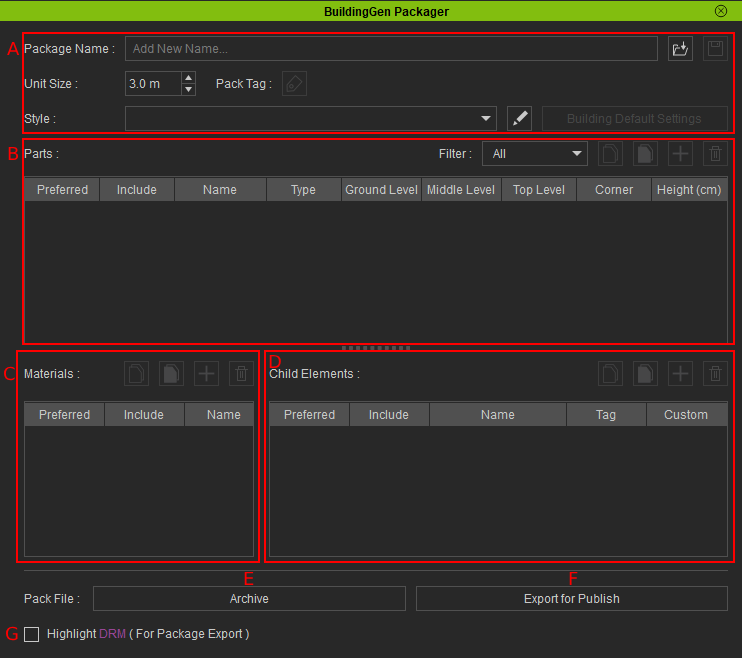
|
UI |
Name |
Function |
|
A |
Package Settings |
The primary settings in the BuildingGen Packager panel include Package Name, Unit Size, Pack Tag, Style, and loading and saving iBuildingConfig. |
|
B |
Parts Settings |
Modifies the settings of individual unit parts to better suit the building structure you’re designing. |
|
C |
Materials Settings |
Customize the materials of the selected unit part to add stylized variations when creating buildings with the blueprint. |
|
D |
Child Elements |
Displays the unit components parented to the selected unit part in the Parts section. |
|
E |
Saves the building pack and all of its content to a designated file location, making the assets easy to share. |
|
|
F |
Exports the building pack and all its contents to Content > Custom Tab > Props > Props. This method of saving is recommended for publishing the BuildingGen package. |
|
|
G |
Activating this feature highlights the names of copyrighted assets that are included in the building pack. |
Package Settings section
The following are the primary settings for your building package and styles in the BuildingGen Packager panel. 
|
UI |
Name |
Function |
|
A |
Package Name |
Shows the name of the imported building package. The name in the text field is editable. |
|
B |
Loads an iBuildingConfig into the BuildingGen Packager panel. |
|
|
C |
Saves the settings of your building package into an iBuildingConfig file. |
|
|
D |
Input a number to adjust the unit size for the building styles in your building pack. The size can range from 0.1 to 10 meters. |
|
|
E |
Opens the Edit Tags modal window, which allows you to customize the tags for the building style’s child elements. |
|
|
F |
Style |
Displays the name of the selected building style. A blank field indicates that the building pack is devoid of building styles. |
|
G |
Opens the Style List model window for adding and adjusting building styles. |
|
|
H |
Building Default Settings |
Opens the Building Default Settings panel to adjust the basic and detailed settings. These settings will be utilized initially when creating buildings, using editors like New Building, BuildingGen, Rebuilder, Rebuild Level, and Add Level. |
Parts section
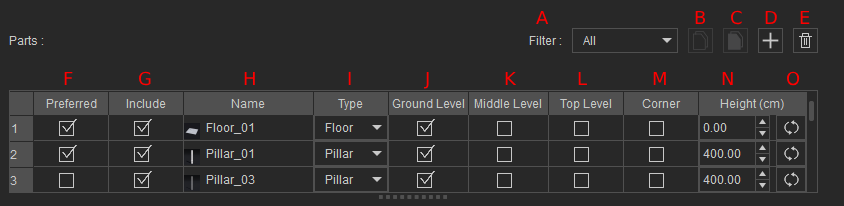
The Parts UI shows the unit parts are within the selected building style. The settings in Parts allow you to customize how the BuildingGen plugin will utilize them in the building creation process using the blueprint.
|
UI |
Name |
Function |
|
A |
Filter |
Display unit parts that match the filter setting. Filters include part types, level types, Regular, and Cut Corner. |
|
B |
Copy |
Copies the selected unit parts including their materials and child elements. |
|
C |
Paste |
Pastes the copied unit parts at the bottom of the list. |
|
D |
Add |
Import additional unit parts (.iProp) from external sources. |
|
E |
Delete |
Deletes the selected unit part. This will also remove the associated materials and child elements. |
|
F |
Enabling this option allows the unit part to be deployed during the construction process. Having multiple Preferred parts allows BuildingGen to randomly select from among them. |
|
|
G |
Enabling this option makes the unit part visible in the Regular and Cut Corner options of the Custom Style panel. Deactivating this option will also turn off the Preferred setting for the unit part. |
|
|
H |
Name |
Displays the name and thumbnail of the unit parts. |
|
I |
Type |
Choose the part type of the selected unit part for BuildingGen to accurately position the parts in their designated locations within the units. |
|
J |
Ground Level |
Use this option to allow BuildingGen to utilize this unit part for creating the Ground Level of the building. |
|
K |
Middle Level |
Activating this to let BuildingGen use the chosen unit part in creating the Middle Level of the building. |
|
L |
Top Level |
By enabling this option, the part will be available for the construction of the building’s top level. |
|
M |
Corner |
Activating this option allows BuildingGen to use the unit part exclusively for Cut Corner pieces. Otherwise the unit part will be regarded as a Regularpiece. |
|
N |
Adjusts the height of the unit part to maintain uniformity among the wall and pillar parts that reside on the same level. It can also be used to remove gaps between building levels. |
|
|
O |
Resets the height settings of the selected unit part to its default value. |
Materials section
The Material UI manages the materials that are linked to a chosen unit part in the building style. Use its tools to pick which material will be applied in the default settings for building creation, or reserved for future use in editing building styles. 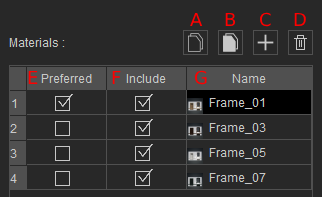
|
UI |
Name |
Function |
|
A |
Copy |
Copies the selected unit part’s materials. |
|
B |
Paste |
Paste the copied part materials to the bottom of the list. |
|
C |
Add |
Import materials (.iMtlPlus) for the selected unit part from external sources. |
|
D |
Delete |
Deletes the chosen materials that are connected with the unit part. |
|
E |
Enabling this option allows for the application of the material during the construction process. Having multiple Preferred materials allows BuildingGen to randomly select from among them for the associated unit part. |
|
|
F |
Enabling this option makes the material available for selection during the construction process, by making it available in the Materials option of the Custom Style panel. Deactivating this option will also turn off the Preferred setting for the material. |
|
|
G |
Name |
Lists the name and thumbnail of the materials linked to the selected unit part. |
Child Elements section
The Child Elements section oversees the components attached to the selected unit part in the building style. Use the functions within to customize the component's default settings for building creation, day-night material and position settings. 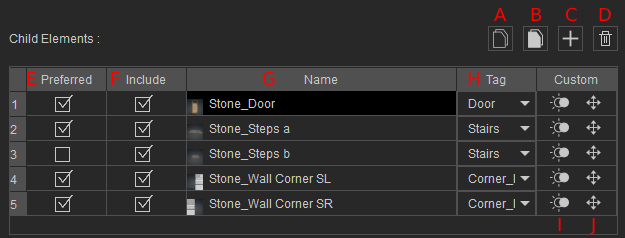
|
UI |
Name |
Function |
|
A |
Copy |
Copies the selected child elements in the table. |
|
B |
Paste |
Pastes the copied child elements to the bottom of the table. |
|
C |
Add |
Loads child elements (.iProp) from external sources. |
|
D |
Delete |
Deletes the selected child elements. |
|
E |
When enabled, the child element will be used with the unit part during the construction process. Multiple child elements possessing the same tag will allow BuildingGen to randomly pick among them. |
|
|
F |
When enabled, the child element will be applicable to the unit part during the construction process, by making them selectable in the Child Element section of the Custom Style panel. Deactivating this option will also turn off the Preferred setting for the child element. |
|
|
G |
Name |
Displays the name and a thumbnail of the child element. |
|
H |
Shows the type of tag assigned to the child element. |
|
|
I |
Apply the day and night time materials to the selected child element. |
|
|
J |
Modify the position of the chosen child element attached under the selected unit part. |
